Windows 11 OOBE Offline Setup: Local Accounts, Unattend, and BypassNRO Caveats
Core idea: if your deployment must reliably create a local account on Windows 11, build the flow around supported UserAccounts and OOBE settings first. Treat BYPASSNRO only as a build-sensitive fallback, not as your primary contract with Setup.
What OOBE controls in Windows 11
OOBE, short for Out of Box Experience, is the handoff from image deployment to user-facing setup. This is where Windows 11 asks for region, keyboard, privacy preferences, networking, and sign-in choices. In unattended deployments, it is also the stage where account creation becomes visible or hidden depending on the settings you provide.
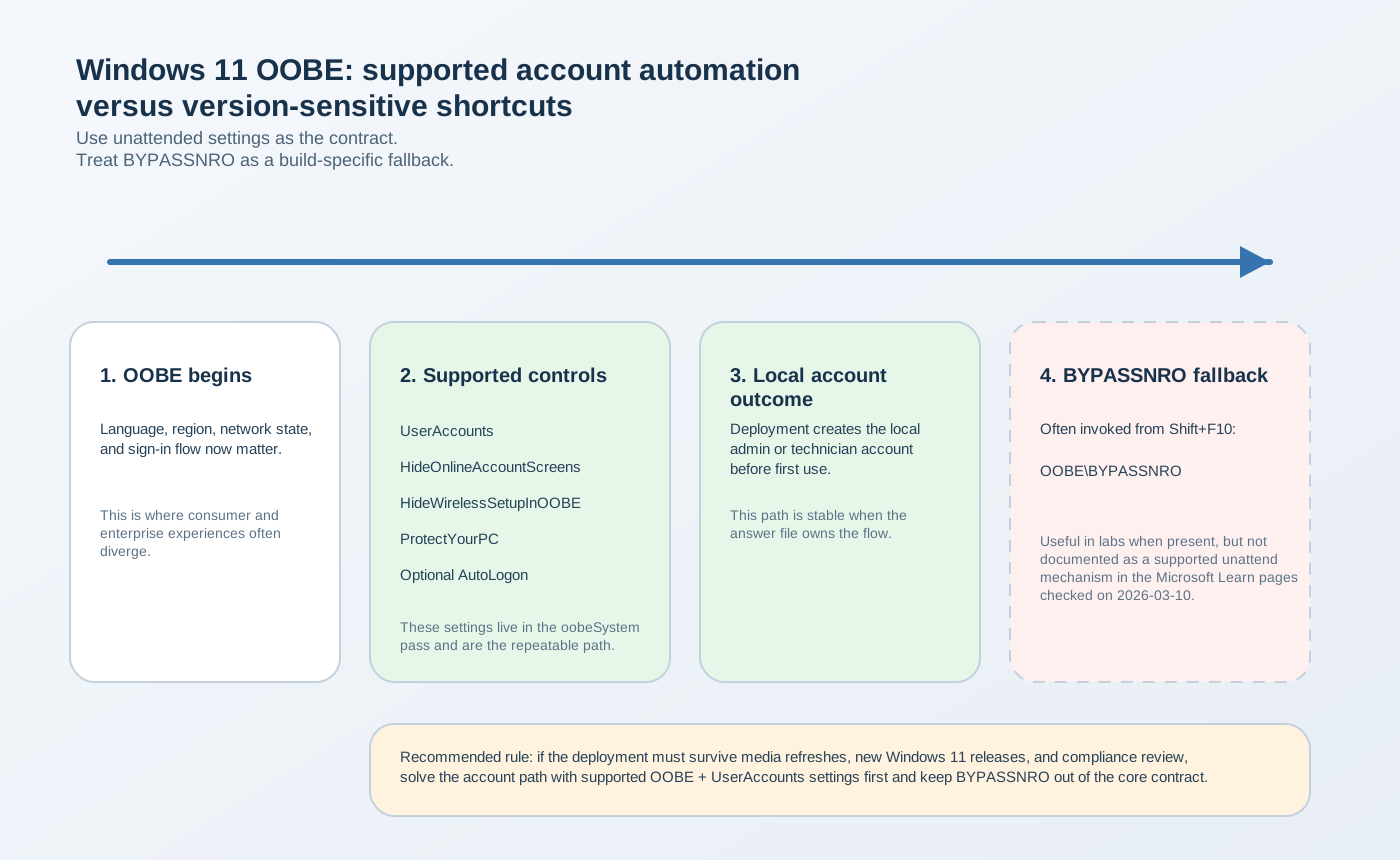
The important distinction is between supported OOBE controls and shortcut-style workarounds. The former live in documented unattend components. The latter may work on some builds and disappear on others.
Supported unattended settings for local-account flows
| Setting | Pass | What it helps control | Notes |
|---|---|---|---|
UserAccounts |
oobeSystem |
Create local accounts before the user begins normal work | The supported foundation for local-account automation |
HideOnlineAccountScreens |
oobeSystem |
Suppress online account sign-in pages in applicable flows | Should be treated as a supported OOBE preference, not a guarantee that every future UI branch will look identical |
HideWirelessSetupInOOBE |
oobeSystem |
Hide the wireless setup page in applicable OOBE paths | Useful for known-network or offline lab scenarios |
ProtectYourPC |
oobeSystem |
Controls express-settings behavior | Often set to keep OOBE deterministic |
AutoLogon |
oobeSystem |
Optional first sign-in automation | Useful for technician flows, but should be justified and cleaned up |
The operational rule is simple: if the deployment is expected to survive media refreshes and repeated builds, keep the critical local-account logic in UserAccounts and related OOBE settings rather than relying on an undocumented shortcut.
Sample XML for a local account and OOBE settings
This example shows the supported portion of the flow. It creates a local administrator account and sets a predictable OOBE path:
<settings pass="oobeSystem">
  <component name="Microsoft-Windows-Shell-Setup"
             processorArchitecture="amd64"
             publicKeyToken="31bf3856ad364e35"
             language="neutral"
             versionScope="nonSxS">
    <OOBE>
      <HideEULAPage>true</HideEULAPage>
      <HideOnlineAccountScreens>true</HideOnlineAccountScreens>
      <HideWirelessSetupInOOBE>true</HideWirelessSetupInOOBE>
      <ProtectYourPC>3</ProtectYourPC>
    </OOBE>

    <UserAccounts>
      <LocalAccounts>
        <LocalAccount wcm:action="add">
          <Name>deployadmin</Name>
          <DisplayName>Deployment Admin</DisplayName>
          <Group>Administrators</Group>
          <Password>
            <Value>ExamplePassw0rd!</Value>
            <PlainText>true</PlainText>
          </Password>
        </LocalAccount>
      </LocalAccounts>
    </UserAccounts>

    <AutoLogon>
      <Username>deployadmin</Username>
      <Enabled>true</Enabled>
      <LogonCount>1</LogonCount>
      <Password>
        <Value>ExamplePassw0rd!</Value>
        <PlainText>true</PlainText>
      </Password>
    </AutoLogon>
  </component>
</settings>
Security note: plaintext passwords are shown here only to keep the sample readable. Real unattended pipelines should use the password-handling rules your deployment tooling and security policy allow, and should avoid leaving technician autologon enabled beyond its intended first-use window.
Where BYPASSNRO fits
BYPASSNRO is commonly used as a field shortcut when OOBE insists on a network-dependent account flow. In practice, technicians often open a command prompt during OOBE and run:
Shift+F10
OOBE\BYPASSNRO
That path is useful in lab or break-glass situations because it can reopen an offline branch of the experience on builds where it still exists. But it is important to be precise about what it is not:
- It is not a documented unattend element like
UserAccounts. - It is not a stable product contract you should design your deployment pipeline around.
- It does not replace the need for correct
oobeSystemsettings when you want repeatable local-account creation.
Why this behavior is version-sensitive
Version-sensitive note as of March 10, 2026: the current Microsoft Learn pages checked for this article document supported OOBE automation settings such as UserAccounts, HideOnlineAccountScreens, and HideWirelessSetupInOOBE, but they do not document BYPASSNRO as a supported deployment mechanism. This article therefore treats BYPASSNRO as an implementation detail that must be revalidated against the exact Windows 11 build you ship.
That distinction matters for production engineering. If you maintain a reusable deployment recipe, the supported XML settings belong in the recipe. Any BYPASSNRO-style branch belongs in test notes, lab procedures, or controlled fallback logic with an explicit build check.
When to use or avoid the shortcut
| Scenario | Recommended approach | Why |
|---|---|---|
| Repeatable enterprise deployment | Use supported unattended OOBE settings and UserAccounts |
Stable, reviewable, and easier to keep working across media refreshes |
| Offline lab or technician image validation | Use supported settings first; keep BYPASSNRO as a manual fallback only if the build still exposes it | Fast recovery without turning an undocumented shortcut into a dependency |
| Compliance-sensitive or audited environments | Avoid depending on BYPASSNRO | Undocumented behaviors are harder to justify and harder to support long-term |
| Consumer self-install media | Avoid assuming local-account branches remain unchanged | Microsoft can adjust consumer OOBE flows between releases |
For a complete deployment path, combine this guidance with the autounattend.xml structure article and the Windows ISO structure guide. If your media is delivered on USB or needs firmware validation, pair it with ISO to USB and UEFI Secure Boot and ISOs.