Windows ISO Structure Explained: boot.wim, install.wim, and Why Editing Is Different
Core idea: a Windows installation ISO is not just a bundle of files. It is a bootable optical-media layout that contains setup binaries, one or more WIM or ESD payloads, and firmware-sensitive metadata. That is why changing Windows media is more like rebuilding a deployment artifact than editing a document.
Top-level Windows ISO layout
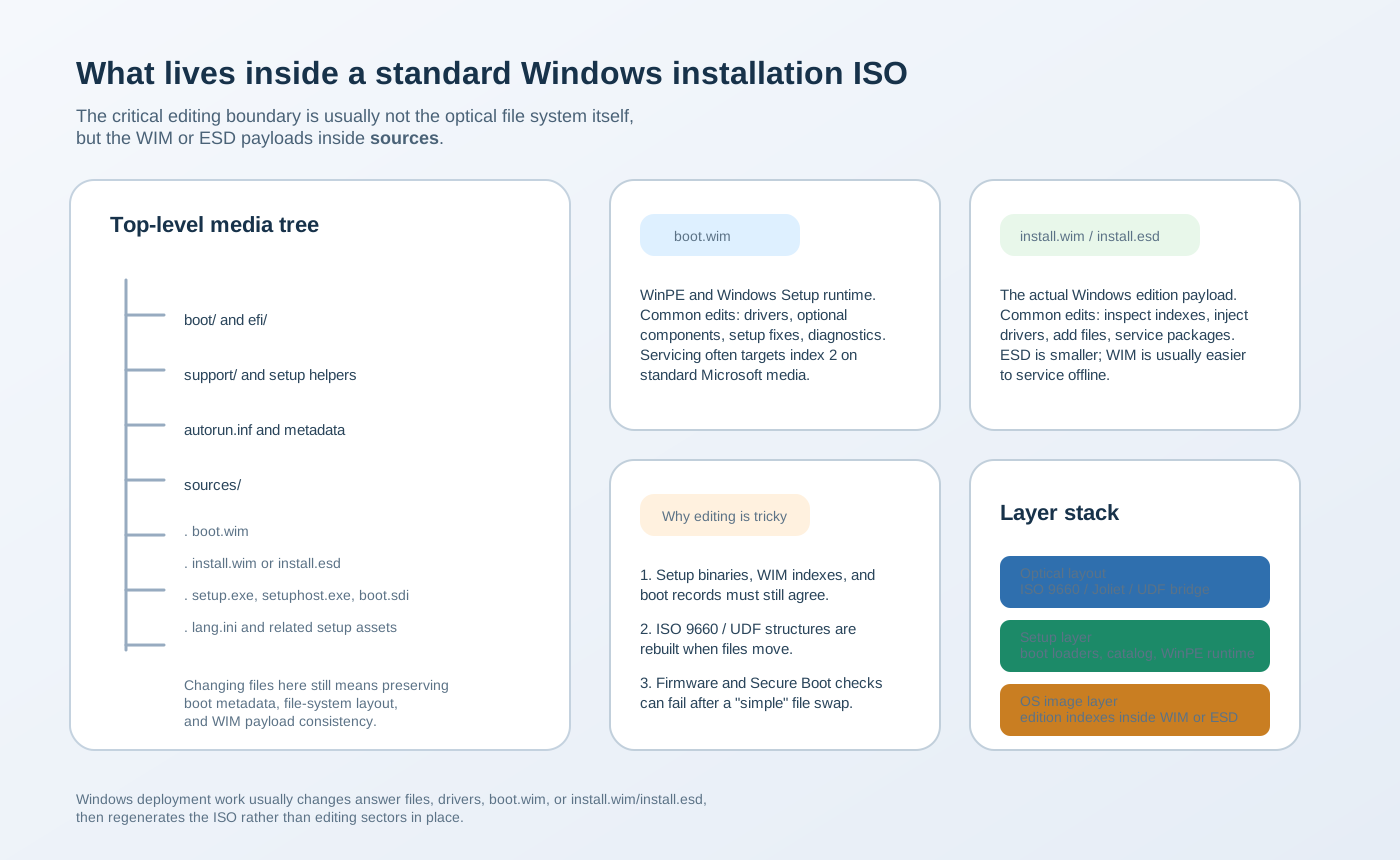
A standard Windows installation ISO usually contains a predictable set of directories and boot assets. The exact file list varies by release, language pack, and servicing level, but the basic shape is consistent:
/
|-- boot/
|-- efi/
|-- sources/
|   |-- boot.wim
|   |-- install.wim   (or install.esd)
|   |-- setup.exe
|   |-- setuphost.exe
|   |-- boot.sdi
|   `-- lang.ini
|-- support/
`-- autorun.inf
This tree explains an important operational boundary: most deployment customization happens in sources, not in raw sectors. You may inject drivers into boot.wim, service the OS image inside install.wim, or add an answer file to the media root, but you still have to regenerate a coherent ISO afterward.
What the sources folder does
The sources directory is the working core of installation media. It carries the Setup runtime, the preinstallation environment, and the actual operating system image payload. For Windows deployment teams, this is the directory that explains why media customization often splits into two tracks:
- Setup environment changes: drivers, WinPE tools, or setup-time scripts that belong in
boot.wim. - Installed OS changes: packages, files, or configuration baselines that belong in
install.wimorinstall.esd.
If your workflow includes autounattend.xml, remember that the answer file and the sources directory solve different problems. The answer file tells Setup what to do; the WIM or ESD files define what image and runtime exist to act on.
boot.wim versus install.wim
| File | Purpose | When it is used | Common customization tasks |
|---|---|---|---|
boot.wim |
Windows PE and Setup runtime | Before the destination OS is applied | Add storage or network drivers, optional WinPE tools, diagnostics, setup fixes |
install.wim |
One or more Windows edition images | Applied to the target disk during installation | Inject packages or drivers, service images, remove content, inspect indexes |
On standard Microsoft installation media, boot.wim commonly contains more than one image index, and servicing guidance often focuses on index 2 because that index represents the Setup-facing WinPE image. By contrast, install.wim holds the actual editions you deploy, so its indexes map to Windows variants such as Pro, Enterprise, or Education depending on the media.
Where install.esd and split images fit
Not all media ship with install.wim. Many downloadable builds use install.esd instead because it compresses more aggressively and reduces download size.
| Format | Why it appears | Tradeoff |
|---|---|---|
install.wim |
Flexible for inspection and servicing | Larger file size |
install.esd |
Smaller download payload | Less convenient for offline servicing workflows |
install.swm split images |
Large images divided to meet media constraints such as FAT32 file-size limits | More handling complexity during rebuilds and deployment |
If your source media uses install.esd and you need heavy offline servicing, many teams export the required image into a new .wim first. That is not about correctness alone; it is about keeping the servicing toolchain predictable.
Why ISO 9660 and UDF still matter
Windows installation media still lives inside an optical-media file-system envelope. That means the outer ISO has to preserve volume descriptors, directory records, boot metadata, and compatibility across BIOS/UEFI and disc/USB use cases. UDF matters because Windows payloads can easily exceed legacy size constraints, while ISO 9660 and its extensions remain relevant for compatibility with firmware and media tools.
For a deeper file-system view, continue to ISO 9660 vs Joliet vs Rock Ridge vs UDF. For boot-specific behavior, see Bootable ISOs: El Torito, BIOS vs UEFI, and Hybrid Boot Media.
Why editing Windows media is not a direct save
People often say they want to "edit the Windows ISO", but the phrase covers multiple layers of change:
- Adding a root-level answer file such as
autounattend.xml - Modifying
boot.wimso Setup can recognize storage or network hardware - Changing
install.wimorinstall.esdto inject content into the installed OS - Rebuilding the final ISO so boot metadata, file-system layout, and checksums still make sense
That last step is the trap. Even if you only changed one payload file, the output ISO is still a regenerated image. Firmware paths, Secure Boot expectations, and optical file-system metadata can all fail independently of the file you thought you touched.
This is the same reason our earlier How to Edit ISO Files article emphasizes repacking rather than in-place editing.
Practical servicing workflow
A predictable Windows media workflow usually looks like this:
dism /Get-WimInfo /WimFile:D:\sources\boot.wim
dism /Get-WimInfo /WimFile:D:\sources\install.wim

dism /Mount-Image /ImageFile:D:\sources\boot.wim /Index:2 /MountDir:C:\Mount\Boot
dism /Mount-Image /ImageFile:D:\sources\install.wim /Index:6 /MountDir:C:\Mount\OS

rem ...inject drivers, packages, files, or scripts...

dism /Unmount-Image /MountDir:C:\Mount\Boot /Commit
dism /Unmount-Image /MountDir:C:\Mount\OS /Commit
If the media ships with install.esd, you may export the desired index into a servicing-friendly .wim before mounting it. After servicing, rebuild the final ISO and retest it as boot media, not just as a mounted file tree.
The safest order is: inspect indexes, mount the right image, service only what belongs in that layer, regenerate the ISO, then test BIOS/UEFI boot and setup behavior in a VM.
If you are mapping the full flow end-to-end, pair this page with the autounattend.xml guide and with UEFI Secure Boot and ISOs before publishing customized media.