Automated Windows Installation: Understanding autounattend.xml Structure and Configuration Passes
Core idea: autounattend.xml is not just a settings dump. It is a timing contract with Windows Setup. In VIO Deployment Studio style workflows, the answer file is the generated artifact that tells Setup what to do in windowsPE, specialize, and oobeSystem.
What autounattend.xml does and when Setup reads it
A Windows answer file gives Setup a structured set of decisions before a human sees the installer UI. The familiar filename autounattend.xml is commonly placed on removable installation media so Windows Setup can discover it early in the boot flow.
The important mental model is this: the same XML file is consumed in stages. Setup does not read every setting at once. It reads the subset for the pass that is currently running, ignores unrelated settings, and continues.
If you put a setting in the wrong pass, Windows usually does not fail loudly. It often just ignores the setting. That is why unattended deployments can look "mostly correct" while still missing a local account, computer name, or first-run behavior.
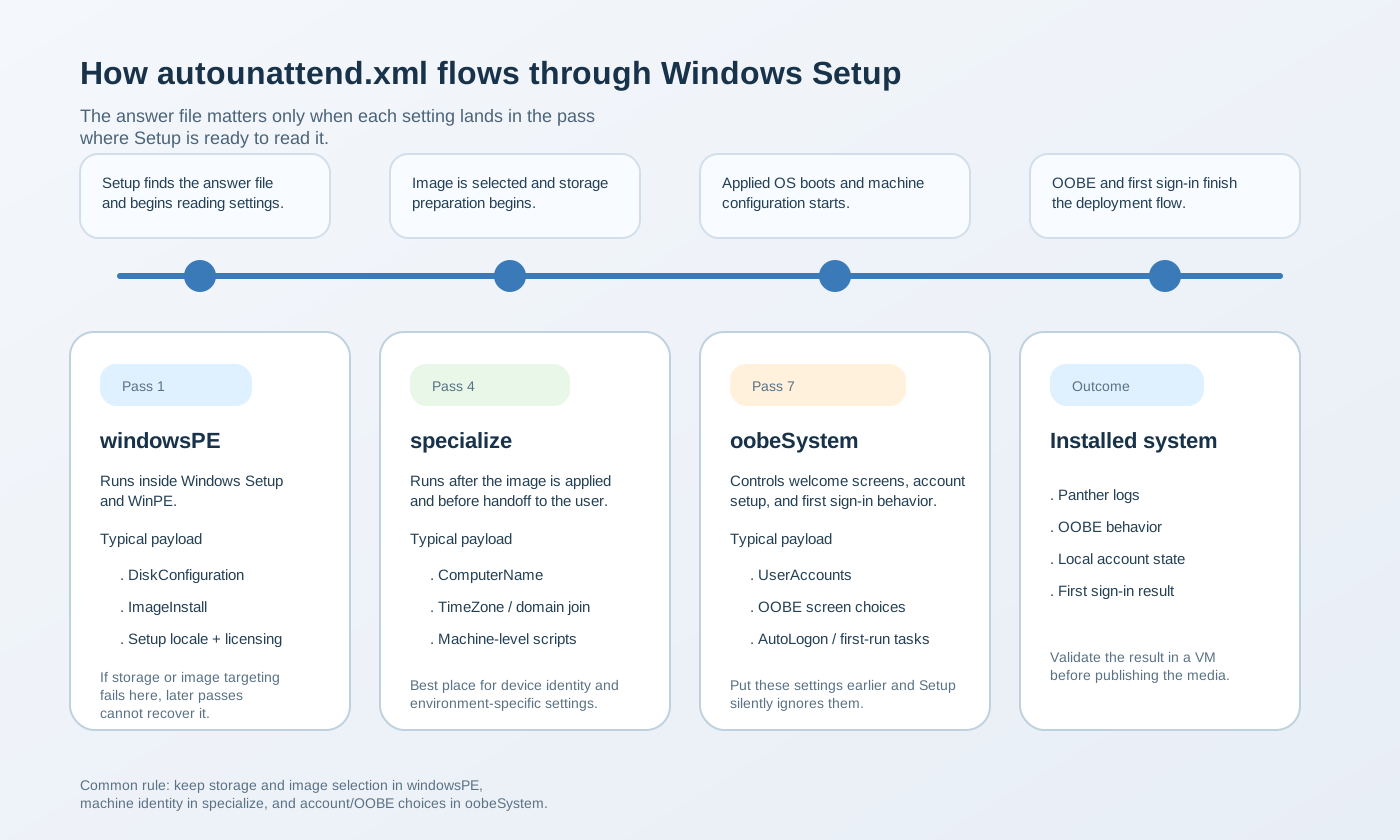
Configuration passes and their execution order
Windows Setup defines several configuration passes, but most unattended deployment work for installation media concentrates on three:
| Pass | When it runs | What usually belongs there |
|---|---|---|
windowsPE |
Inside Windows Setup / WinPE before the OS image is applied | Disk partitioning, image selection, setup locale, product and licensing data, early storage decisions |
specialize |
After the image is applied and the installed OS boots for machine-specific setup | Computer name, time zone, network identity, domain join, machine-scoped commands |
oobeSystem |
During the Windows Welcome / OOBE phase | OOBE screen behavior, local accounts, auto-logon, first sign-in automation, final locale choices |
The execution order matters more than the XML order on disk. A beautifully organized answer file still fails if storage settings live in oobeSystem or OOBE account settings are placed in windowsPE.
Common components and fields
Most answer files reuse the same component families. These are the ones administrators reach for first:
| Component | Pass | Typical use |
|---|---|---|
Microsoft-Windows-International-Core-WinPE |
windowsPE |
Setup UI language, input locale, system locale before the OS is applied |
Microsoft-Windows-Setup |
windowsPE |
DiskConfiguration, ImageInstall, UserData, installation targeting |
Microsoft-Windows-Shell-Setup |
specialize, oobeSystem |
Computer name, time zone, OOBE behavior, local accounts, auto-logon |
Microsoft-Windows-International-Core |
oobeSystem |
Final user-facing locale and keyboard settings after installation |
In recipe-driven deployment systems, it is common to separate these values conceptually into three buckets:
- Media-time settings: how Setup should boot, partition, and apply an image.
- Machine-time settings: values that belong to one device or environment, like name, domain, and locale.
- User-time settings: account creation and the first-run experience.
A minimal working answer file example
This example is intentionally small. It shows the structure and placement of settings, not every knob you might need in production:
<unattend xmlns="urn:schemas-microsoft-com:unattend"
          xmlns:wcm="http://schemas.microsoft.com/WMIConfig/2002/State"
          xmlns:cpi="urn:schemas-microsoft-com:cpi">
  <settings pass="windowsPE">
    <component name="Microsoft-Windows-International-Core-WinPE"
               processorArchitecture="amd64"
               publicKeyToken="31bf3856ad364e35"
               language="neutral"
               versionScope="nonSxS">
      <SetupUILanguage>
        <UILanguage>en-US</UILanguage>
      </SetupUILanguage>
      <InputLocale>en-US</InputLocale>
      <SystemLocale>en-US</SystemLocale>
      <UILanguage>en-US</UILanguage>
      <UserLocale>en-US</UserLocale>
    </component>

    <component name="Microsoft-Windows-Setup"
               processorArchitecture="amd64"
               publicKeyToken="31bf3856ad364e35"
               language="neutral"
               versionScope="nonSxS">
      <DiskConfiguration>
        <Disk wcm:action="add">
          <DiskID>0</DiskID>
          <WillWipeDisk>true</WillWipeDisk>
          <CreatePartitions>
            <CreatePartition wcm:action="add">
              <Order>1</Order>
              <Type>Primary</Type>
              <Size>100</Size>
            </CreatePartition>
            <CreatePartition wcm:action="add">
              <Order>2</Order>
              <Type>Primary</Type>
              <Extend>true</Extend>
            </CreatePartition>
          </CreatePartitions>
        </Disk>
      </DiskConfiguration>

      <ImageInstall>
        <OSImage>
          <InstallTo>
            <DiskID>0</DiskID>
            <PartitionID>2</PartitionID>
          </InstallTo>
        </OSImage>
      </ImageInstall>

      <UserData>
        <AcceptEula>true</AcceptEula>
      </UserData>
    </component>
  </settings>

  <settings pass="specialize">
    <component name="Microsoft-Windows-Shell-Setup"
               processorArchitecture="amd64"
               publicKeyToken="31bf3856ad364e35"
               language="neutral"
               versionScope="nonSxS">
      <ComputerName>*</ComputerName>
      <TimeZone>UTC</TimeZone>
    </component>
  </settings>

  <settings pass="oobeSystem">
    <component name="Microsoft-Windows-International-Core"
               processorArchitecture="amd64"
               publicKeyToken="31bf3856ad364e35"
               language="neutral"
               versionScope="nonSxS">
      <InputLocale>en-US</InputLocale>
      <SystemLocale>en-US</SystemLocale>
      <UILanguage>en-US</UILanguage>
      <UserLocale>en-US</UserLocale>
    </component>

    <component name="Microsoft-Windows-Shell-Setup"
               processorArchitecture="amd64"
               publicKeyToken="31bf3856ad364e35"
               language="neutral"
               versionScope="nonSxS">
      <OOBE>
        <HideEULAPage>true</HideEULAPage>
        <HideOnlineAccountScreens>true</HideOnlineAccountScreens>
        <HideWirelessSetupInOOBE>true</HideWirelessSetupInOOBE>
        <ProtectYourPC>3</ProtectYourPC>
      </OOBE>
      <UserAccounts>
        <LocalAccounts>
          <LocalAccount wcm:action="add">
            <Name>deployadmin</Name>
            <DisplayName>Deployment Admin</DisplayName>
            <Group>Administrators</Group>
            <Password>
              <Value>ExamplePassw0rd!</Value>
              <PlainText>true</PlainText>
            </Password>
          </LocalAccount>
        </LocalAccounts>
      </UserAccounts>
    </component>
  </settings>

  <cpi:offlineImage cpi:source="wim:d:/sources/install.wim#Windows 11 Pro"/>
</unattend>
Do not copy this blindly into production. Storage layout, image index, locale, and password handling must match your exact media and security policy. Use it as a pass-placement example, not as a universal template.
Typical failure modes
| Symptom | Likely cause | Fix direction |
|---|---|---|
| Partitioning did not happen | DiskConfiguration was missing, invalid, or pointed at the wrong disk |
Validate the storage section against the target hardware and install media |
| Computer name or time zone was ignored | Machine-scoped settings were placed in the wrong pass | Move them to specialize |
| Local account was not created | UserAccounts lives in oobeSystem, but the XML was malformed or skipped |
Validate the XML and inspect Panther logs after OOBE |
| Setup showed UI unexpectedly | Required values were missing, or the answer file did not match the target image | Open the XML in Windows SIM and rebind it to the actual WIM image |
| Commands never ran | The command was attached to the wrong pass or relied on an unavailable context | Use pass-appropriate command hooks and test in a VM from a cold boot |
Validation and preflight checklist
Before you publish automated media, run a short validation cycle:
- Validate against the image: load the answer file in Windows SIM or equivalent tooling bound to the exact target image.
- Check pass placement: every section should answer "why does this belong in this pass?"
- Boot in a VM: verify storage layout, edition selection, OOBE behavior, and local account creation from a clean start.
- Inspect logs: if something is ignored, review Panther setup logs rather than guessing.
- Version the recipe: treat the answer file as generated output tied to a specific media revision, not a timeless template.
Once you understand this contract, the next step is understanding the media it controls. See Windows ISO Structure Explained for the relationship between the answer file, boot.wim, and install.wim. For account-related OOBE behavior, continue to Windows 11 OOBE Offline Setup.