ISO to USB: Creating Bootable Flash Drives Guide
Critical Rule: Simply dragging an ISO file onto a USB drive window will not work. You must write the image content to the drive's physical sectors.
Why "Copy Paste" Fails
When you copy a file to a USB stick, you are placing data inside an existing partition (usually FAT32 or NTFS). The computer's BIOS/UEFI doesn't look inside files for boot code; it looks at specific physical sectors (the MBR or Partition Table) at the very start of the disk.
To make a USB drive bootable from an ISO, you need a tool that takes the contents of the ISO and writes them to the drive in a layout that the firmware expects.
The Magic of Hybrid ISOs
Traditional ISOs were designed only for CD/DVDs. Modern "Hybrid ISOs" (common with Linux distros) contain dual structures:
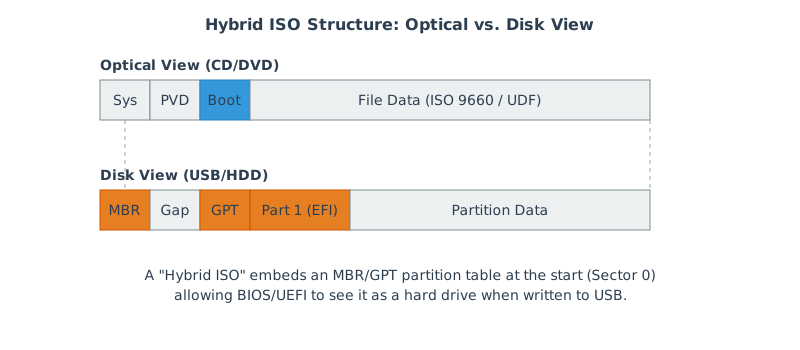
They have an ISO 9660 file system for optical drives, AND a Master Boot Record (MBR) or GUID Partition Table (GPT) for USB drives embedded in the first few sectors. This allows the same file to be burned to a DVD or written byte-for-byte ("flashed") to a USB stick.
DD Mode vs ISO Mode
Tools like Rufus offer two ways to write:
- ISO Mode (File Copy): The tool creates a standard partition (FAT32/NTFS) on the USB and extracts the files from the ISO onto it. It then installs a bootloader (like Syslinux or GRUB) to hook into the files. This is flexible (you can still use the USB for storage) but can break if the ISO structure is complex.
- DD Mode (Disk Image): The tool writes the ISO byte-by-byte to the USB, overwriting everything including the partition table. This relies on the ISO being a "Hybrid ISO". It is the most reliable method but makes the USB drive "read-only" or confusing to Windows until reformatted.
Practical implications:
| Aspect | ISO Mode | DD Mode |
|---|---|---|
| Reliability across distros | Varies (depends on extraction + bootloader setup) | High (writes exactly what publisher shipped) |
| Windows readability after write | Usually readable as a normal USB drive | Often looks “weird” until you reformat |
| UEFI constraints | May hit FAT32 requirements (e.g., 4GB file limit) | Works if the ISO is authored for UEFI USB boot |
| Adding custom files later | Easier (it’s a normal file system) | Hard (you’re not meant to modify the resulting disk) |
Step-by-step: Windows, macOS, Linux
Safety first: Writing an image erases the USB drive. Double-check the target device before clicking “Start” or running a terminal command.
Windows (Rufus)
- Insert your USB drive (preferably 8GB+).
- Open Rufus and select the correct Device.
- Choose your ISO under Boot selection.
- If prompted, pick DD mode for maximum reliability on hybrid ISOs, or ISO mode if you need a modifiable file system.
- Start the write, then safely eject the drive.
If you need to customize the ISO contents first (drivers, answer files, scripts), edit the ISO with VIO ISO Editor, save a new ISO, then write the new ISO to USB.
macOS (Terminal)
macOS can write images at the block level. Identify your USB disk carefully:
- List disks:
diskutil list - Unmount (not eject) the target:
diskutil unmountDisk /dev/diskN - Write (example):
sudo dd if=image.iso of=/dev/rdiskN bs=1m status=progress
Using /dev/rdiskN (raw disk) is faster than /dev/diskN on many systems.
Linux (Terminal or GUI)
For terminal workflows, identify the device with lsblk (or sudo fdisk -l), then write:
- Write (example):
sudo dd if=image.iso of=/dev/sdX bs=4M status=progress conv=fsync
On desktop Linux, tools like GNOME Disks can “Restore Disk Image…” to a USB drive (equivalent to DD mode).
Verification & safety checks
Quick checks reduce the chance of “it boots on one machine but not another” surprises:
- Validate the ISO hash: Compare SHA-256 against the publisher if provided.
- Confirm firmware mode: Some systems default to UEFI-only or legacy BIOS-only.
- Try a different USB port: Older firmware sometimes behaves differently on USB 2.0 vs USB 3.x.
- Reformat after DD mode: If Windows shows a “format disk” prompt, that’s normal for some hybrid layouts.
Recommended Tools
- Rufus (Windows): The gold standard. Offers both ISO and DD modes.
- BalenaEtcher (Cross-platform): Simple, safe, defaults to DD mode (perfect for Hybrid ISOs).
- dd (Linux/macOS terminal): The raw power user tool.
sudo dd if=image.iso of=/dev/sdX status=progress.
If you need to edit the content before flashing (e.g., adding a kickstart file), use VIO ISO Editor to modify the ISO first, save it, and then flash the new ISO.
Troubleshooting
| Symptom | Likely cause | Fix direction |
|---|---|---|
| USB shows up but won’t boot | Wrong mode (BIOS vs UEFI), non-hybrid ISO written in DD mode, or firmware quirks | Try ISO mode (Rufus), or use a distro-provided USB writer; verify firmware settings |
| Windows can’t see files after writing | DD mode wrote a non-Windows-friendly partition layout | This can be normal; boot the target machine, or reformat the USB after use |
| UEFI refuses to boot (Secure Boot) | Unsigned bootloader or modified EFI binaries | Disable Secure Boot or use signed media; see Secure Boot guide |
| Installer starts, then fails mid-way | Bad USB flash media, corrupted ISO, or unstable USB ports | Re-download ISO, verify checksum, try another USB drive/port |