How to Mount ISO Files on Windows, macOS, and Linux
Did you know? Since Windows 8, you don't need third-party tools just to read an ISO. The operating system can mount it natively.
What does "Mounting" mean?
Mounting is the process of hooking up a disc image file to the operating system so it appears as a physical drive.
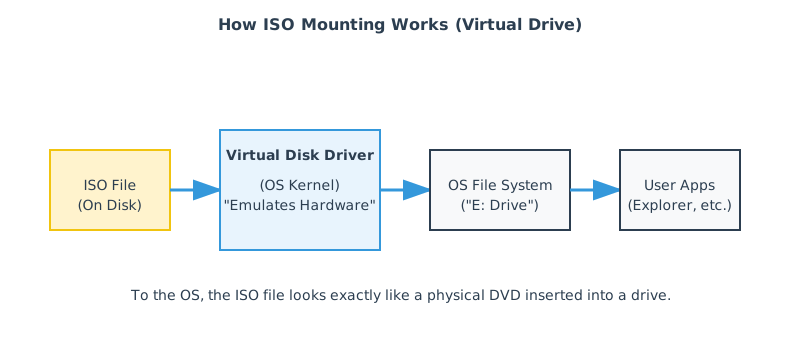
A "Virtual Disk Driver" tricks the OS into thinking a new DVD drive has been connected, and that the ISO file is the disc inside it.
This is ideal for quick inspection and for copying files out. It is not the same as “editing” the ISO, because mounted images are usually read-only.
Windows 10 & 11
Method 1: Double-Click
Simply double-click the ISO file. Windows will create a virtual drive letter (e.g., E:) and open it.
Method 2: Right-Click
Right-click the ISO and select Mount.
To remove it: Go to "This PC", right-click the virtual drive, and select Eject.
When “Mount” is missing
If the context menu option is missing, the file association may be overridden by third-party tools. You can still mount via PowerShell or restore the default association for ISO images.
macOS
On macOS, double-clicking an ISO file mounts it to the Desktop and Finder sidebar. To unmount, click the "Eject" icon next to the drive name in Finder, or drag the desktop icon to the Trash.
Some Apple distribution images use .dmg instead of .iso. If you need maximum compatibility across operating systems, converting DMG to ISO can help.
Linux
Most desktop environments (GNOME, KDE) support right-click mount. For the terminal:
sudo mount -o loop image.iso /mnt/folder
If you are working on headless servers, using a dedicated mount directory and explicit permissions reduces confusion.
Command-line examples
Windows (PowerShell)
- Mount:
Mount-DiskImage -ImagePath "C:\path\image.iso" - List mounted images:
Get-DiskImage - Dismount:
Dismount-DiskImage -ImagePath "C:\path\image.iso"
macOS (hdiutil)
- Attach:
hdiutil attach image.iso - Detach (example):
hdiutil detach /Volumes/YourVolumeName
Linux (loop device)
- Create mount point:
sudo mkdir -p /mnt/iso - Mount read-only:
sudo mount -o loop,ro image.iso /mnt/iso - Unmount:
sudo umount /mnt/iso
When native mounting isn't enough
Native mounting is "read-only". You cannot delete files from the virtual drive.
If you need to edit the contents, you must use a tool like VIO ISO Editor to open the ISO, modify it, and save a new version.
If your goal is to make a bootable USB drive, mounting is not the same as writing an image. See ISO to USB: Creating Bootable Flash Drives.
Troubleshooting
| Problem | What it usually means | Fix direction |
|---|---|---|
| Mount fails with “corrupted image” | Incomplete download or damaged file | Re-download, verify checksum (SHA-256 if provided) |
| Linux says “wrong fs type, bad superblock” | Not an ISO 9660/UDF image, or the file is not a disc image | Confirm the file type; for raw images use different mount approach |
| Windows mounts but installer still won’t run | Mounting only provides access; it doesn’t bypass OS security policies | Run setup with appropriate privileges; consider extracting instead |
| Need to change files inside the ISO | Mount is read-only by design | Edit with VIO ISO Editor and save a new ISO |