How to Create ISO Files from Folders: The Mastering Process
Definition: "Mastering" is the process of generating a file system image (ISO) from a set of source files on your hard drive.
How Mastering Works
Unlike a ZIP file, which just compresses files, an ISO file is a complete file system.
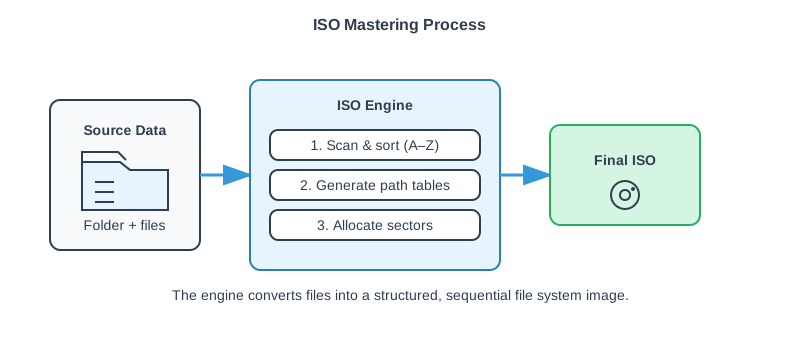
- Input: You select a root folder containing your files.
- Analysis: The engine scans all files, sorts them (required by ISO 9660 for path tables), and checks for naming compliance.
- Generation: It builds the directory tables and calculates the sector address for every file.
- Output: It writes the continuous stream of sectors to the .iso file.
Choosing Standards: ISO 9660 vs UDF
When creating an ISO, you must decide on the format:
- ISO 9660 + Joliet: Best for compatibility. Works on DOS, Windows 95+, Mac, Linux. Limit: Files must be smaller than 4GB.
- UDF: Best for modern data. Supports files larger than 4GB. Works on Windows XP+, macOS, Linux.
- UDF Bridge: Contains both. Best of both worlds, but slightly larger overhead.
Choosing the wrong layer is one of the most common causes of “it mounts but some files are missing” or “it works on OS A but not OS B.” For a deeper comparison, see ISO 9660 vs Joliet vs Rock Ridge vs UDF.
Making the ISO bootable (BIOS/UEFI)
To build a bootable ISO (for an installer or recovery environment), you need more than files. Bootable images include boot records and metadata that firmware reads before any file system driver loads.
| Target | What is required | Typical artifacts |
|---|---|---|
| Legacy BIOS | El Torito boot catalog | Boot catalog + boot image referenced by El Torito |
| UEFI | EFI boot files or an embedded EFI system partition image | \EFI\BOOT\BOOTx64.EFI and related files |
| USB compatibility | Often a hybrid layout for direct writing | MBR/GPT metadata embedded near sector 0 |
Bootability is the part that most often breaks when you “just zip it back up”. If you are modifying an existing bootable ISO, see How to Edit ISO Files and Bootable ISOs Explained.
Tooling options and workflows
There are two common ways to create an ISO:
- GUI mastering: Choose source folders, select file system options, set volume label, and export.
- Command-line mastering: Use tools like
mkisofs/genisoimage/xorrisoon Linux/macOS, oroscdimgon Windows toolchains.
For repeatable builds, command-line workflows are easier to automate. For interactive inspection and editing, an ISO editor UI is usually faster.
Build mindset: Treat an ISO like a release artifact. Define your target matrix (Windows/macOS/Linux, BIOS/UEFI, optical/USB), then choose ISO layers and boot strategy accordingly.
Common Pitfalls
Filename Truncation: If you only use ISO 9660 Level 1 (DOS style), "My Resume.docx" becomes "MY_RESUM.DOC". Always enable Joliet for long filenames on Windows.
4GB Limit: If you try to add a 5GB file to a pure ISO 9660 image, it will fail or be corrupted. Use UDF for large files.
Hidden Files: Some mastering tools ignore hidden system files by default. Check your settings if files are missing.
Non-deterministic ordering: Some toolchains produce different ISO byte layouts across runs (sorting, timestamps). If you need reproducible artifacts, lock sorting rules and timestamps.
Verification checklist
Before distributing an ISO, verify it across the environments you claim to support:
- Mount test: Mount on Windows/macOS/Linux and ensure the expected files are present.
- Long path/filename test: Confirm filenames are preserved on Windows and Linux views.
- Large file test: Confirm files larger than 4GB are readable if you use UDF.
- Boot test: Validate BIOS and UEFI boot paths if the ISO is bootable.
- Hash: Publish a SHA-256 to detect corruption in distribution.